QZ Tray requires local network access permission in the web browser to communicate with the local QZ Tray service. If this permission is blocked, printing and device connectivity may fail.
Google Chrome / Microsoft Edge (Chromium)
- Open the affected website that uses QZ Tray.
- Click the padlock icon to the left of the address bar.
- Select Site permissions.
- Locate Local network access.
- Chrome - Apps on device and set to Allow
- Change the setting from Block to Allow.
- Close the permissions panel.
- Refresh the page.
- Retry printing from Openfreight
Mozilla Firefox
- Open the affected website.
- Click the padlock icon next to the address bar.
- Select More Information.
- Go to the Permissions tab.
- Locate Access other apps and services on this device.
- Set the permission to Allow.
- Close the dialog.
- Refresh the page.
- Retry printing from Openfreight
Printer can't connect with Tray Application/ Printer Lost Connection
Openfreight signals you with an error saying cannot connect with tray application.
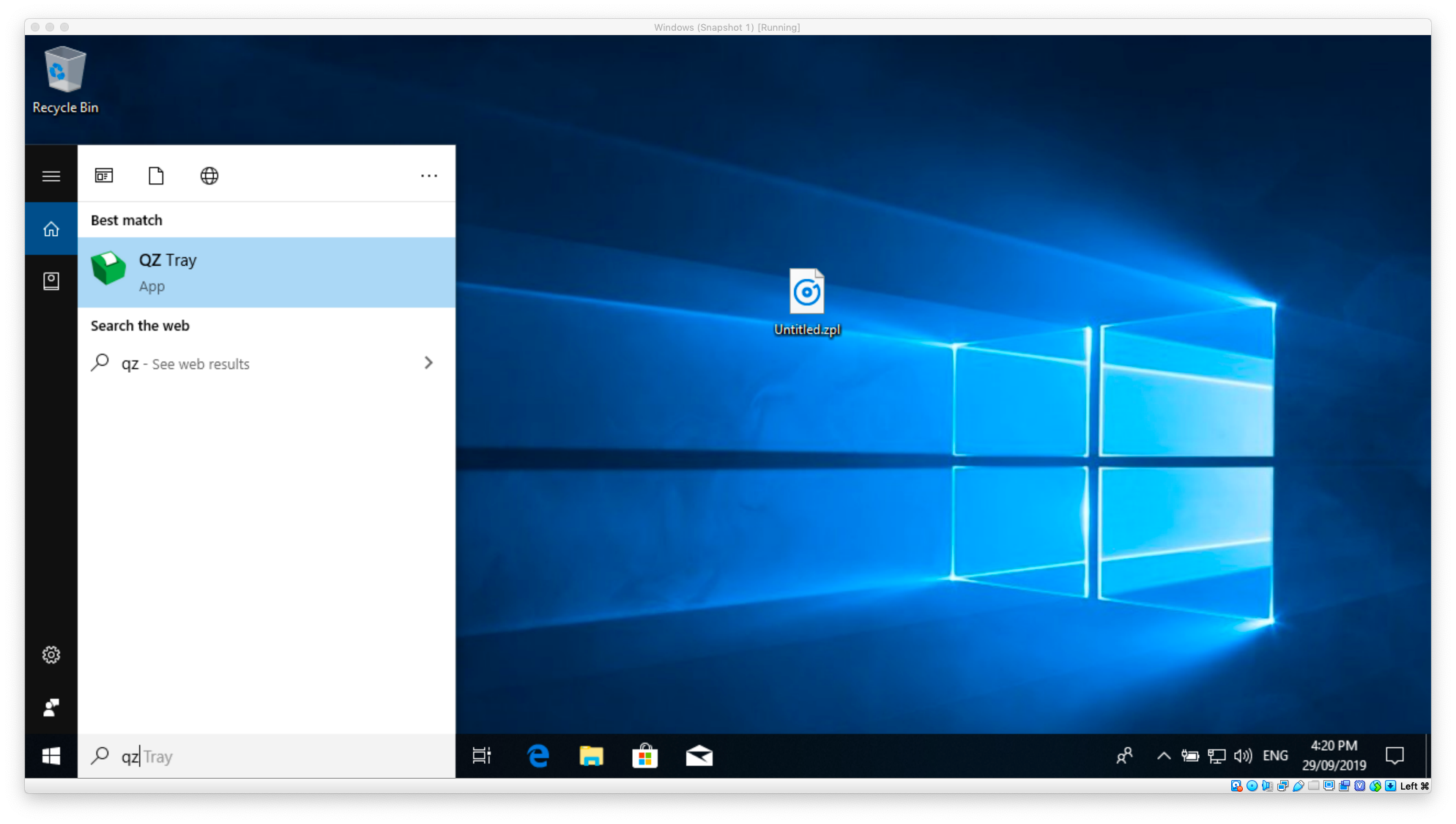
Please make sure that QZ tray is running if not start it up from the windows start menu
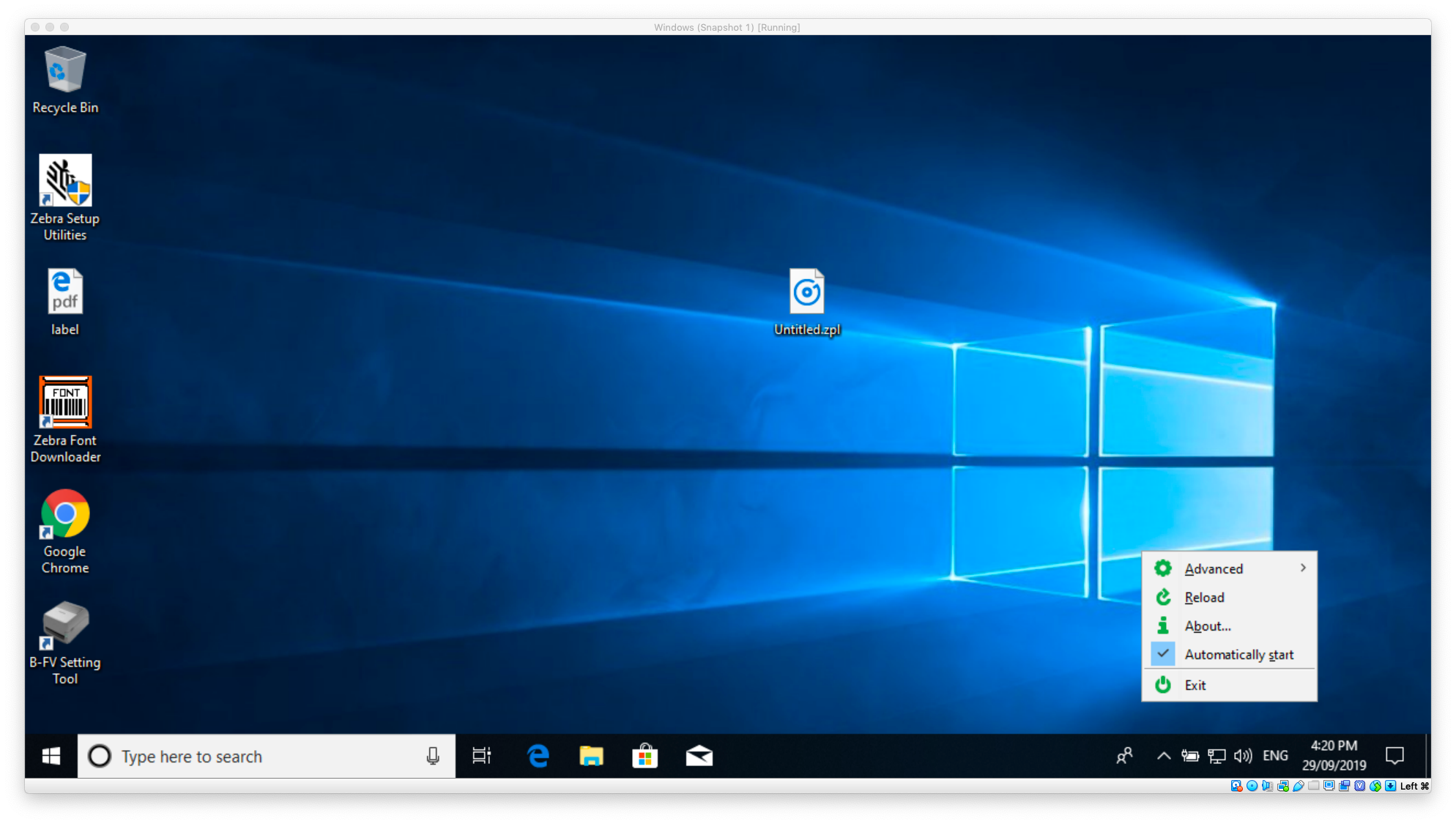
Make sure that it automatically starts on startup by right clicking the QZ tray application on the bottow right hand corner and clicking automatically start.
Was this article helpful?
That’s Great!
Thank you for your feedback
Sorry! We couldn't be helpful
Thank you for your feedback
Feedback sent
We appreciate your effort and will try to fix the article